
How to use
Five steps, from event to myARB
Capture
1. Capture
At the event, or straight after, tap + Capture. Give it a name and date, then add what you have: photos of slides, the PDF or PowerPoint, a YouTube transcript, your own notes, or an email you wrote afterwards. Save — you can add more later.
Learn
2. Learn
Press Create learning note. In under a minute developThat reads your material and writes a short note: a summary, five things to remember, useful rules of thumb, a checklist for future projects and a few check questions.
Reflect
3. Reflect
Answer the four myARB prompts in your own words — typed or dictated:
- What did I learn?
- How am I applying this to my practice?
- How has this improved my competence?
- What steps do I want to take next?
Press Tidy to fix spelling and flow. developThat never writes the reflection for you.
Record
4. Record
Open myARB alongside developThat on a laptop. Use the Copy buttons for the date, topic, activity type and reflection, then press I’ve added this to myARB so your progress stays up to date.
Review
5. Review
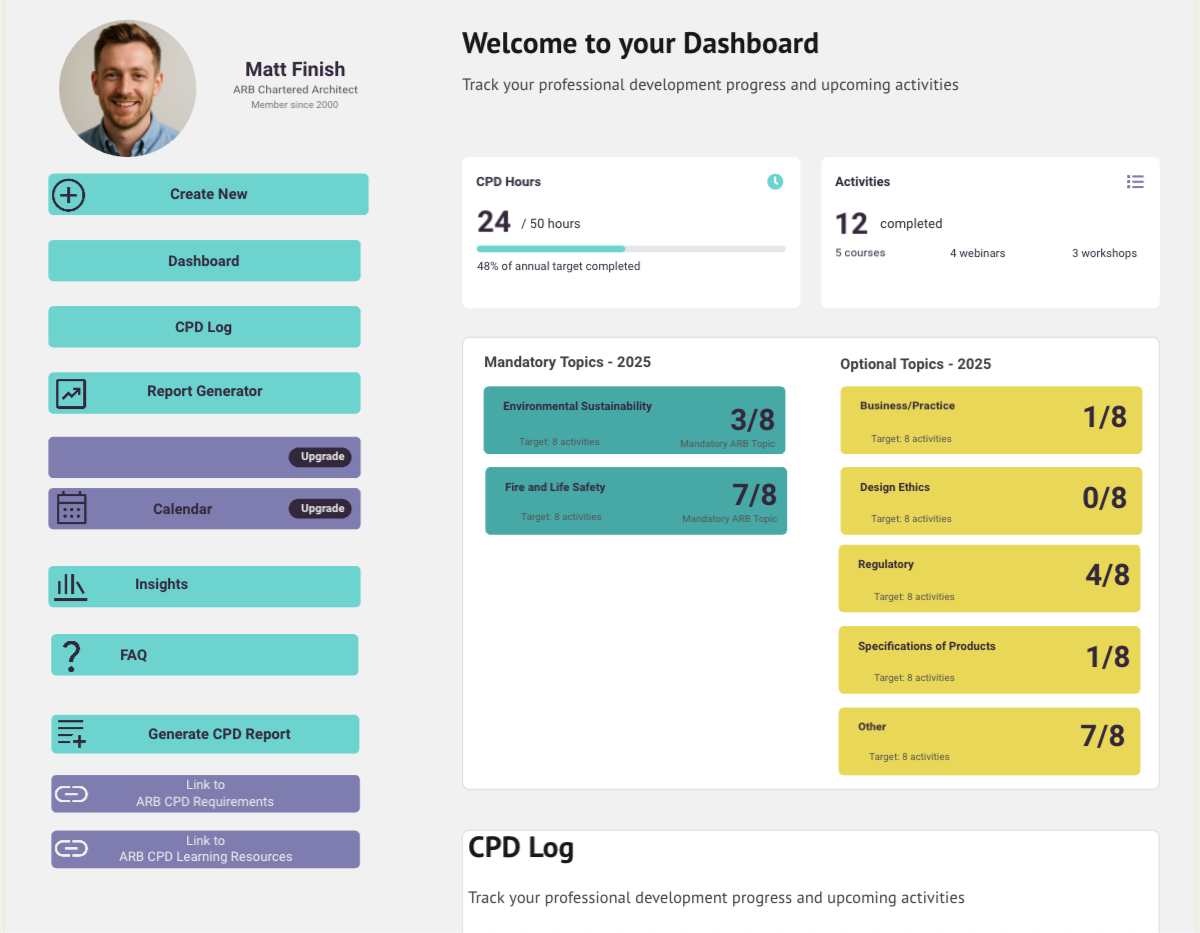
Before 31 December, open Year pack. It checks your mandatory topics, flags gaps and duplicates, and writes a short review of your year with a development plan for the next one.
Import
Already keep your CPD in a spreadsheet?
Use Import from CSV: download the template, match your column headings and upload. Only the date and title are required. You can download all your records as CSV at any time.
iPhone
Put developThat on your phone
iPhone: open app.developthat.uk in Safari, tap Share, then Add to Home Screen.
Your phone is best for capturing at events and recalling the five things to remember. Reflecting and entering records in myARB are easiest on a laptop.
Android
Put developThat on your phone
Android: open it in Chrome, tap ⋮, then Install app.
Your phone is best for capturing at events and recalling the five things to remember. Reflecting and entering records in myARB are easiest on a laptop.
Tips
Tips for a good learning note
Slides or a transcript give the best results. On YouTube, open the video’s description and choose Show transcript, then copy it into the notes box.
Add a line of your own: what struck you, or what you will do differently.
- Files can be up to 30 MB. Very large image-only PDFs may need splitting.
Tips
Tips for a good learning note
Photos of slides work well — take them straight on, one slide per photo.
- Add a line of your own: what struck you, or what you will do differently.
- Files can be up to 30 MB. Very large image-only PDFs may need splitting.
ARB guidance
- ARB CPD scheme — what ARB expects each year.
- Mandatory topics competency guidelines (PDF) — what the mandatory topics cover.